Create and switch organizations
Create a workspace for your team and switch between the ones you belong to.
Open /organizations to manage workspaces available to your account.
- Enter an organization name and URL-safe slug under Create organization.
- Submit the form. The new organization becomes the active workspace.
- Use the Current organization Combobox to switch among existing memberships.
Choose and manage an organization
This local account owns VIGOR Studio. The current organization picker is searchable; invitation controls continue further down the page.
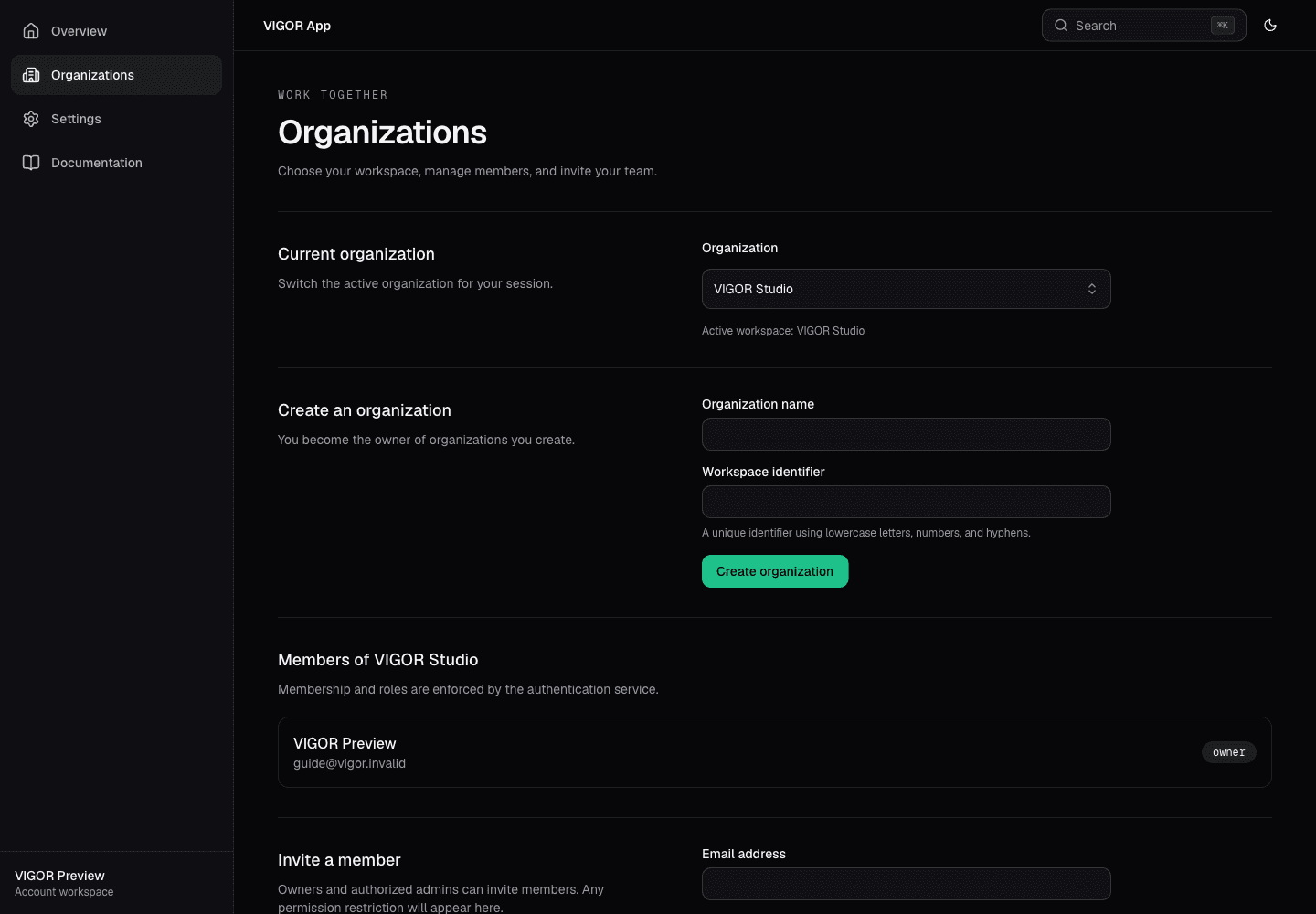
- Open the Combobox and type to filter organizations you belong to.
- Create a workspace with a name and URL-safe slug; it becomes active immediately.
- Organization ownership is separate from the account-wide platform administrator role.