Find your way around
The dashboard, the navigation on each device, and global search.
Dashboard and navigation
After sign-in, / shows a greeting and live account details. Navigation uses the same labels on
every device:
- Overview returns to the dashboard.
- Organizations opens workspace, member, and invitation management.
- Settings opens profile, password, theme, install, and sign-out controls.
- Documentation opens this site on the configured docs host.
On mobile these destinations are bottom tabs with safe-area spacing. Tablet uses an icon rail. Desktop uses a persistent sidebar. More screen space changes the presentation, not the route or meaning of an item.
Your desktop workspace
The dashboard shows live account information and stable navigation, not sample product metrics.
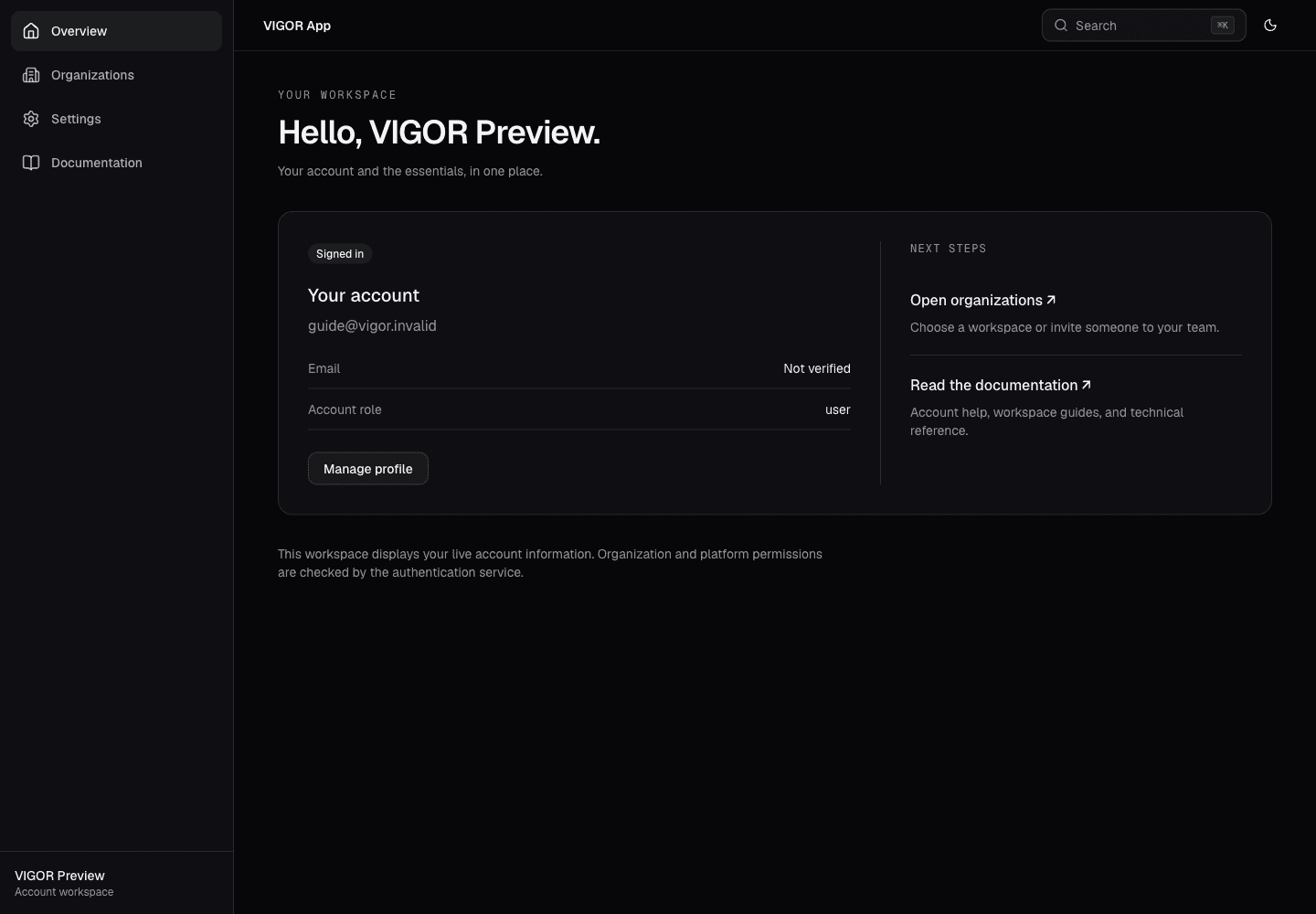
- Use the sidebar to open organizations, settings, or documentation.
- Review your email verification state and account-wide role.
- Manage profile opens your account settings.
The same routes on mobile
Bottom tabs stay reachable while the account content scrolls. On tablets, navigation becomes a compact icon rail.
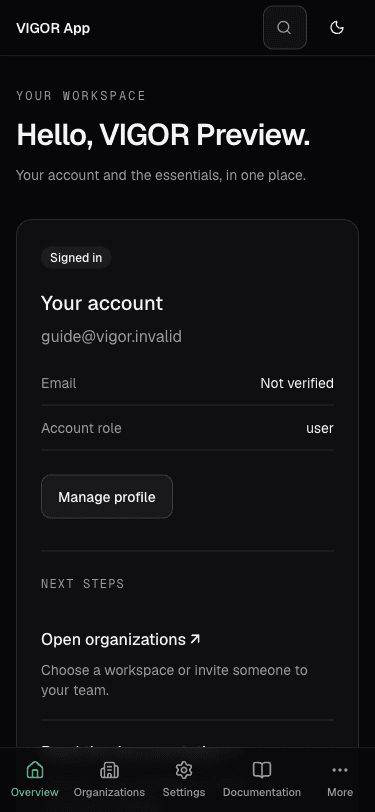
- Open global search from the header on touch devices.
- Switch sections using the bottom tabs; More opens the additional navigation panel.
Search
Press Cmd+K on macOS or Ctrl+K on Windows and Linux, or choose the search trigger in the header. The command dialog searches navigation and the API's allow-listed resources. Select a result to navigate. Close it with Escape. Search does not expose arbitrary organization or account data.
Find a destination quickly
The command dialog supports typing, arrow keys, Enter, and Escape. API results are limited to approved resources.
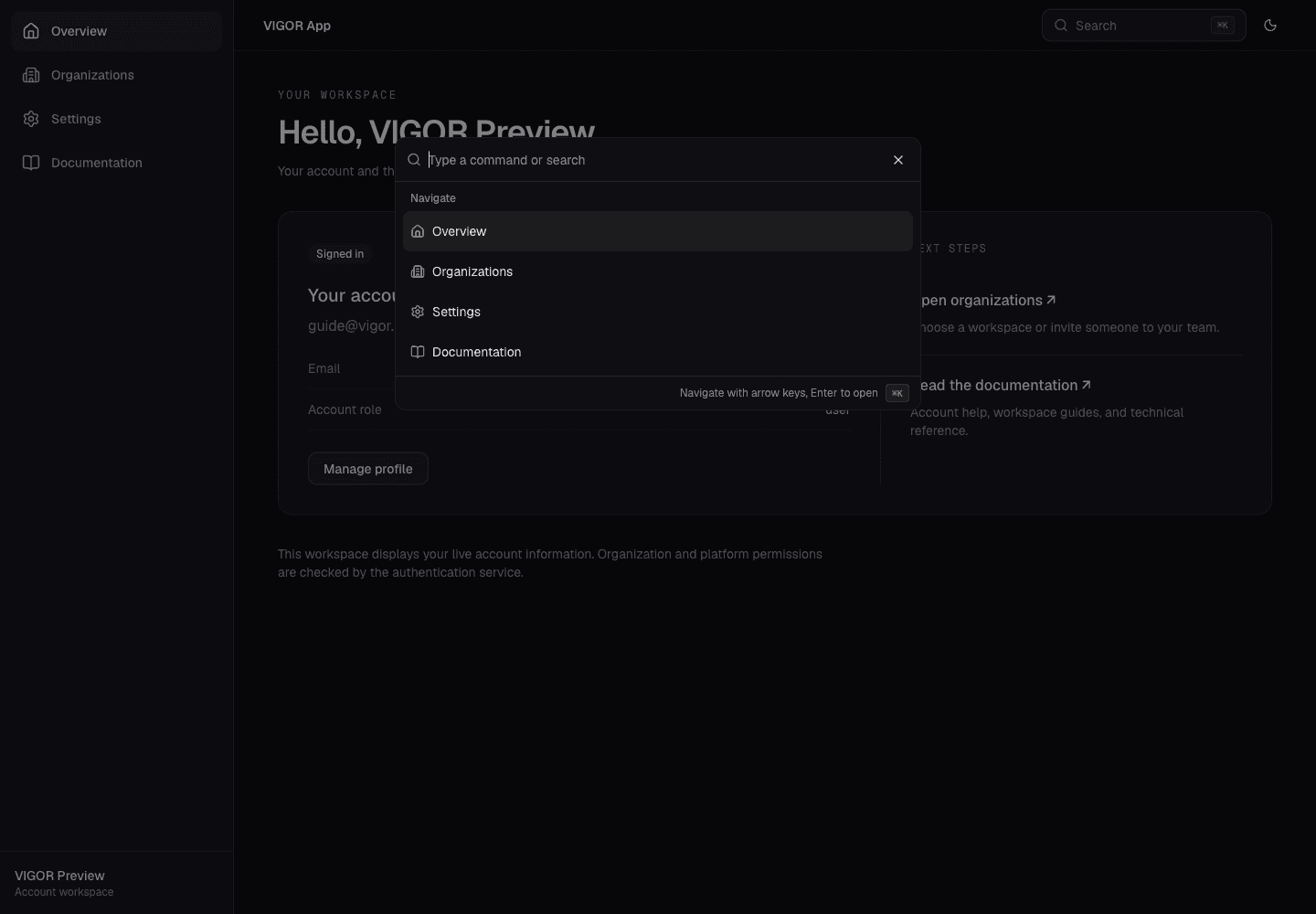
- Type a command or destination into the search field.
- Choose a result with the pointer, or use the arrow keys and Enter.